
Create your Integration Hub user — walkthrough
Step-by-step screenshots for Partner Sign In → Sign up now. Use this page when you are creating your portal user or stuck on a signup screen.
This hub uses its own identity — not ScanSource.com, PartnerVue, or other ScanSource sites. Scroll to the walkthrough below, or expand FAQ if you need status and access answers first.
Overview: Home · Create your Integration Hub user
Status and access FAQ
Expand a topic. The screenshot walkthrough under Create your Integration Hub user is the main guide for Sign up now.
Account status: Submitted
ScanSource is reviewing your registration. Waiting is normal, not an error. You typically will not see entitled APIs, products, or organization credentials yet. Typical review: a few business days.
Account status: Active
Partnership and organization assignment are validated. Open Profile → Organization Subscription Information for organization credentials. Products and docs can appear for your organization.
Account status: Disabled
Access has been turned off (left company, wrong org, security, or cleanup). You will not see APIs or credentials. Contact your ScanSource account team or hub support.
ScanSource employees — which sign-in?
Use ScanSource Employee Login on Sign in with your corporate work account (Microsoft Entra ID). Employees generally do not use partner self-registration — request portal access through your internal process first.
Partners — which sign-in and Sign up now?
Use Partner Sign In (Microsoft Entra External ID / B2C) — even if your company uses Microsoft 365. New users: Partner Sign In → Sign up now. Follow the screenshot walkthrough below.
Do not switch sign-in methods
Switching methods creates a different identity. It will not show products or credentials from the other path. Sign out, return to Sign in, and use the correct button. Unsure → ask your ScanSource contact.
What validation is (Submitted → Active)
ScanSource confirms affiliation with a partner in good standing, partner number match, email domain / identity fit, and correct entitlements. Validation is not instant API access at signup, and not a replacement for platform-vendor setup.
Why can’t I see APIs or credentials?
Usually still Submitted; Active but not entitled; wrong sign-in method; or looking at Try it keys instead of organization credentials. When Active: Profile → Organization Subscription Information. Portal Primary/Secondary keys are for Try it only.
Can one login cover multiple partners?
No. One portal login maps to one partner organization. If you support multiple partners, use a separate account for each partner you integrate.
Stuck in Submitted
Confirm partner number and email domain. After a few business days, contact your account team with company name, partner number, registration email, and signup date. Do not create a second account unless support asks.
Used the wrong sign-in option
Sign out → Sign in → use the correct button. Do not keep creating accounts on both paths. Tell support which email and method you used for each attempt.
Need more help?
Before you contact anyone, confirm: (1) correct sign-in method, (2) you can sign in, (3) Profile status, (4) organization credentials vs Try it keys, (5) partner number and registration email.
Partners / suppliers / customers: contact your ScanSource account team, or email b2bsupport@scansource.com. Include company name, partner number, registration email, status in Profile, and what you cannot see.
ScanSource employees: use internal IT / API platform support with your work email and requested use case.
Do not send Client Secrets, subscription keys, or passwords in email.
Create your Integration Hub user — screenshots
Partner Sign In (B2C) path. Labels in the product UI may vary slightly by environment. Signup creates a portal user for validation — not organization credentials and not immediate API catalog access.
Ready? Open Sign in and follow each step below.
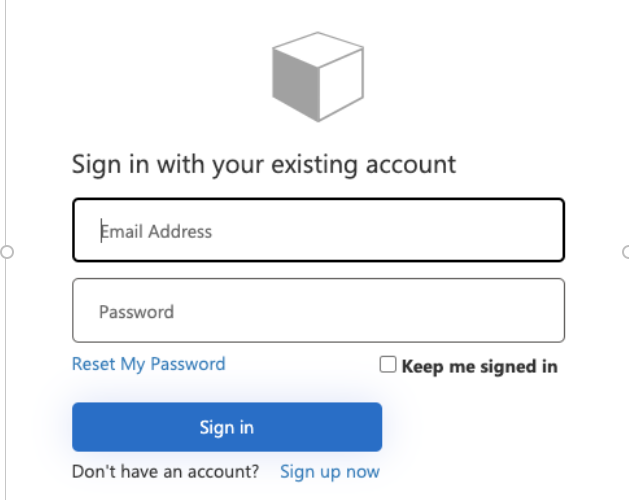
1. Partner Sign In
On Sign in, choose Partner Sign In (not ScanSource Employee Login). That opens the partner identity experience for registration or return sign-in.
Confirm you are on the partner / B2C path before creating an account.

2. Sign up now
If you do not have a hub account, choose Sign up now. If you already verified an account, sign in with that email and password.
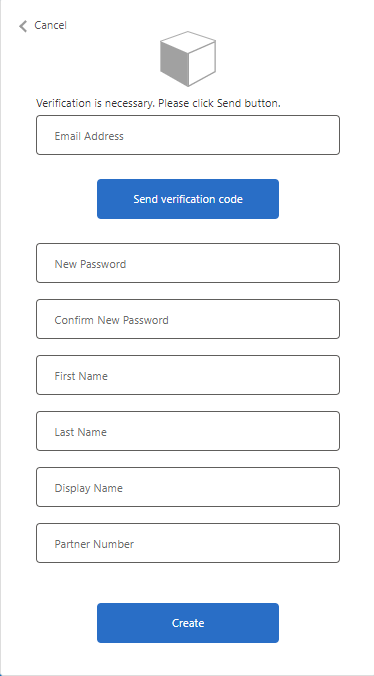
3. Verify your email address
Enter a business email you can access — preferably your company domain so ScanSource can match your partner record. Choose Send verification code, then continue when the code arrives. Personal email domains often slow or block validation.
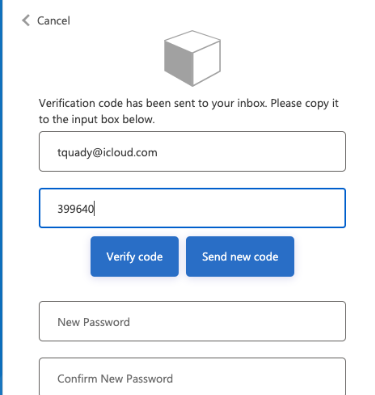
4. Enter the verification code
Enter the code from your inbox and choose Verify code. If the code expired, choose Send new code and try again. Use the same email throughout signup.
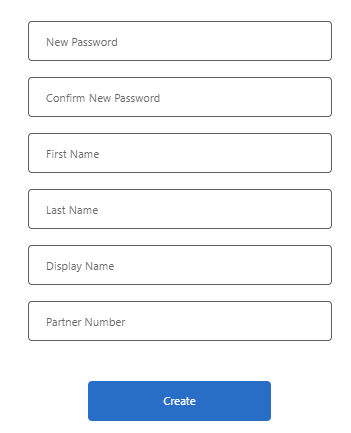
5. Complete signup (name, password, partner number)
Set your password, first name, and last name. Enter your customer or supplier number exactly as it appears on your ScanSource partner record — used for organization assignment, not as an API password. Then choose Create, and sign in with the email and password you just set.
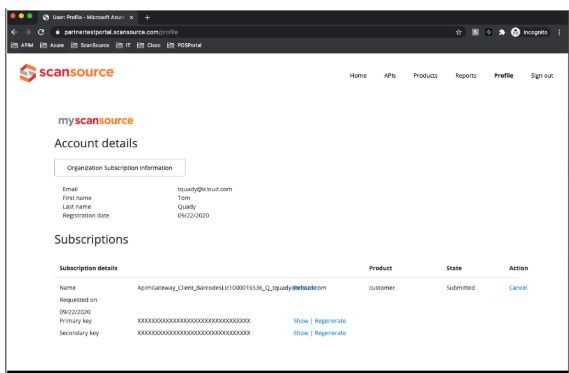
6. Check Profile status
After sign-in, open Profile and find your account status. Submitted: validation in progress. Active: open Organization Subscription Information, then APIs/products or configure your platform. Disabled: contact support; do not create duplicate accounts without guidance.
Ready to continue?
Steps overview: Create your Integration Hub user · Home